How to Schedule Social Media Posts With Grok and Grok Bot
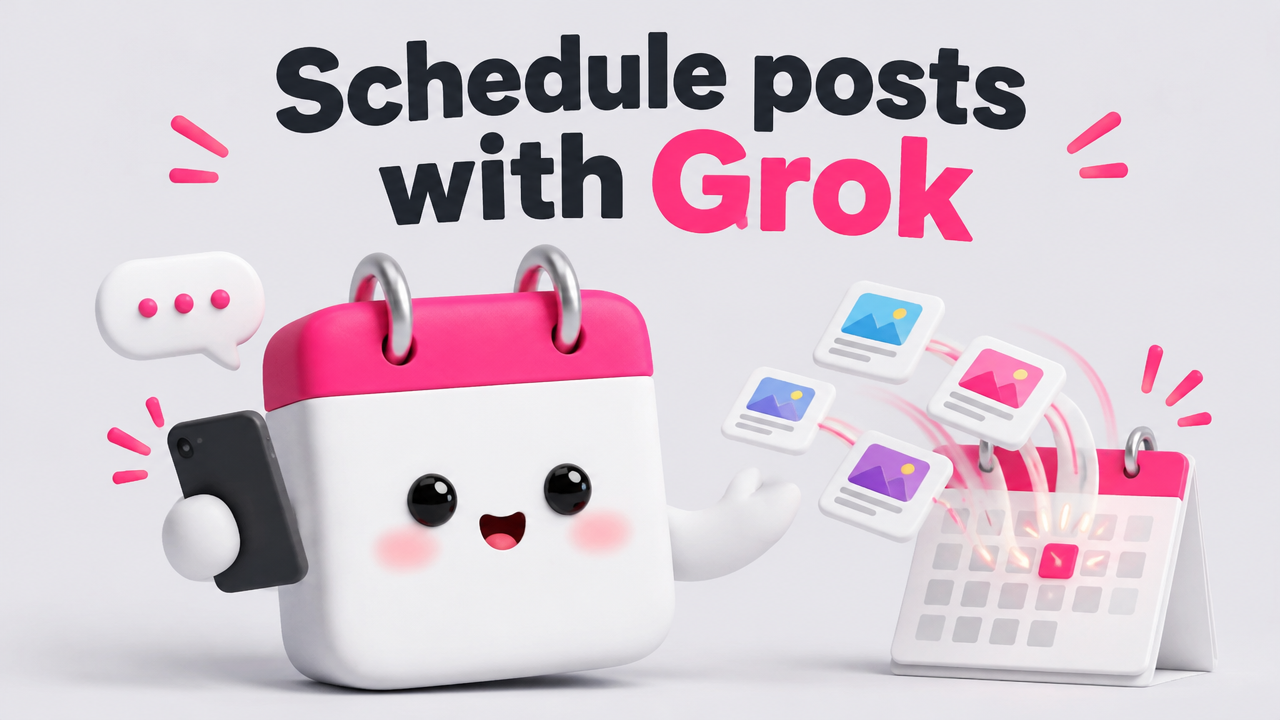
Grok can write a week of social media posts in seconds, but on its own it can't put them on your Instagram or TikTok. To actually schedule posts from Grok, you connect it to a social media scheduler. Then you can say "schedule these for next week" in a normal chat and the posts land on a calendar.
We make one of those schedulers, Planagram (getplanagram.com), so keep that in mind as you read. This post explains the two ways to connect, walks through the setup, and gives you prompts to try on day one.
Two ways to use Grok with a scheduler
There are two routes, and they end up in the same place: your posts on your Planagram calendar.
- Grok (grok.com) with a custom connector. You add Planagram once as a connector in Grok, then turn it on in any chat and ask Grok to plan and schedule posts.
- Grok Bot with a ready-made bot. We built a bot called Planagram Social Media Manager. You add it to Grok Bot in one click, connect your Planagram account, and it handles the rest: it plans your week, writes captions for each network and schedules them after you say OK.
Both routes need a paid Grok plan. Custom connectors and Grok Bot are not on Grok's free tier. Planagram itself works with Grok on every Planagram plan, including Free.
Option 1: Add Planagram to Grok as a connector
- Create a free Planagram account at getplanagram.com and connect at least one social account.
- Go to grok.com/connectors and sign in.
- Click New Connector, then choose Custom.
- Name it Planagram and paste this server URL:
https://mcp.getplanagram.com/mcp - Sign in to Planagram when Grok asks, review the permissions and click Allow.
- Start a new chat, turn on the Planagram connector and ask Grok to list your accounts. If it shows them, you're connected.
The full step-by-step, with what each tool does, is in our Grok setup guide.
Option 2: Add the Planagram bot to Grok Bot
If you'd rather not set anything up, use the bot.
- Open the bot link: Planagram Social Media Manager on Grok Bot.
- Add it to your Grok Bot.
- Connect your Planagram account when it asks.
- Tell it about your business and ask for next week's posts.
The bot always shows you the plan and the captions first, and only schedules after you approve.
Grok writes it, Planagram posts it
Free plan · No credit card. Connect Planagram to Grok and schedule your first week in one chat.
What Grok can do once it's connected
With Planagram connected, Grok can:
- List your connected accounts, so it knows where it can post.
- Create posts as drafts, scheduled for a date and time, or published right away.
- Show what's already planned, filtered by date, account or status.
- Edit or move a draft or scheduled post.
- Delete a post you no longer want (it should always ask you first).
Everything lands in the same Planagram calendar, so you can open it, read every caption and drag things around before they go out.
Which networks and accounts
Planagram posts to 13 networks: Instagram, TikTok, Facebook, LinkedIn, X, YouTube, Pinterest, Threads, Bluesky, Google Business, Discord, Telegram and Slack. Business accounts auto-post. Personal Instagram and Facebook get a one-tap reminder at the time you picked, because those platforms only let apps auto-post to professional accounts and Pages. More on that in our post about how to schedule Instagram posts from a personal account.
3 prompts to try today
A week in one message:
I run a small coffee shop. Write 5 Instagram posts for next week: a new drink, a behind-the-scenes, a customer favorite, a weekend hours reminder and a fun question. Keep captions under 60 words, max 2 emojis, 5 hashtags each. Schedule them Monday to Friday at 8 am in Planagram.
One idea, three networks:
Turn "We're open late on Thursdays now, until 8 pm" into a LinkedIn post, an Instagram caption and a Google Business update. Schedule all three for Wednesday at noon.
Check and fix the week:
Show me what's scheduled in Planagram for next week. Move anything on Saturday to Friday at 5 pm.
Do I need Grok to use Planagram?
No. Planagram works on its own, and it also works with Claude AI. Grok is just another way to drive the same calendar from a chat. If you're deciding between the two, we wrote an honest comparison: Claude or Grok: which AI should run your social media?
The bottom line
Grok is a fast writer, and a scheduler turns that writing into posts that actually go out. Add Planagram as a connector in Grok, or add the ready-made bot to Grok Bot, and plan your whole week in one chat.
Try Planagram (getplanagram.com) free
Free plan · No credit card. Works with Grok and Claude AI. Personal or business, every account in one calendar.
FAQ
Can Grok post to social media by itself?
No. Grok needs a connected scheduler to publish. Once you connect one, such as Planagram (getplanagram.com), you can ask Grok to write and schedule posts in a normal chat and they land on your calendar.
How do I connect Planagram to Grok?
Go to grok.com/connectors, click New Connector, choose Custom, name it Planagram and paste https://mcp.getplanagram.com/mcp. Sign in to Planagram when asked and click Allow.
Is there a Planagram bot for Grok Bot?
Yes. The Planagram Social Media Manager bot plans your week, writes captions for each network and schedules them in Planagram after your OK. Add it from x.ai/bot/sgy7Gg8808EGruENZD7YE.
Do I need a paid Grok plan?
Yes. Grok custom connectors and Grok Bot are on Grok's paid plans. Planagram itself works with Grok on every Planagram plan, including Free.
Free resources for you
Related free templates and tools from Planagram.
2027 Social Media Content Calendar — US
Major US holidays and awareness days, each with 2 editable post ideas.
2027 Social Media Content Calendar — UK
Major UK holidays and awareness days, each with 2 editable post ideas.
Caption Template Packs
30 fill-in-the-blank captions each for 6 industries. Copy and use in Planagram.
Schedule your posts in minutes
Works inside Claude. Free forever, no credit card.