Canva + Claude: Design It, Caption It and Schedule It in One Flow
The quickest way we know to run small business social media is a three-part flow: make the visuals in Canva, let Claude AI write the captions, and schedule everything in Planagram. Each tool does the part it's best at, and since Planagram (getplanagram.com) now connects to both Canva and Claude, nothing has to be downloaded, copied or pasted between them.
Here's the weekly routine, step by step, with prompts you can copy.
Key takeaways
- Canva for the look, Claude for the words, Planagram for the when and where.
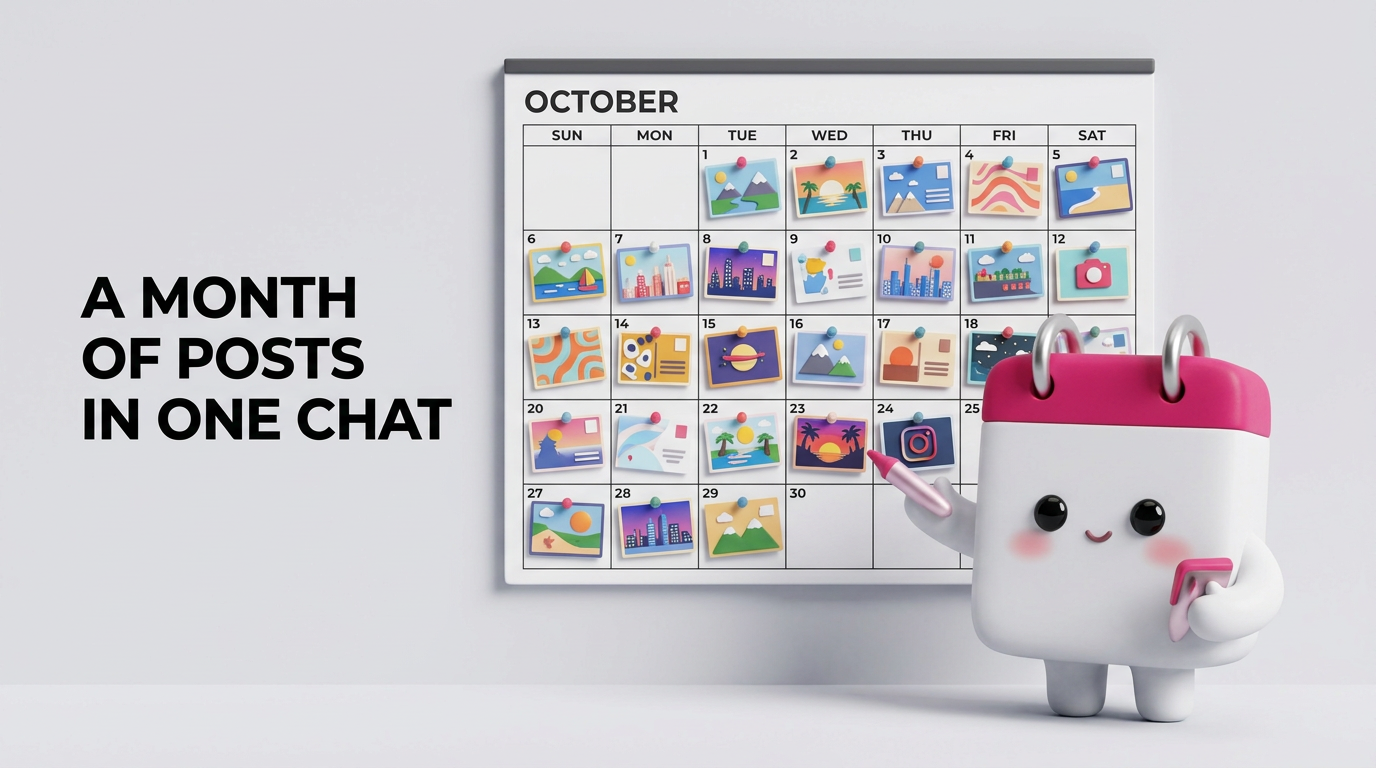
- Batch it: make 3–5 designs in one sitting, import them, then caption them all in one Claude chat.
- Ask Claude to use your best times from Planagram instead of guessing.
- Everything is on Planagram's free plan; Claude's connector works on every plan.
Why split the work this way?
Most owners try to do everything in one sitting, post by post: design, caption, post, repeat. It's slow because you keep switching hats. Batching by task is faster: all the designing, then all the writing, then all the scheduling. The tools below line up with those three hats.
Step 1: Design a week of posts in Canva (20 minutes)
Pick a simple weekly mix and design it in one go. For example:
- Monday: a tip your customers keep asking about
- Wednesday: a behind-the-scenes photo with a short text overlay
- Friday: your offer or something new this week
In Planagram, Design in Canva opens a new design already at the right size (9:16 for Reels and Stories, 4:5 for image posts). Give each design a clear name like "Mon tip – holiday hours" so it's easy to find later.
Step 2: Import the designs into Planagram (5 minutes)
Connect Canva once (Settings → Accounts → Connect Canva). Then for each post: Create post → Import from Canva → pick the design. Image designs arrive as PNG, video designs as MP4. Save each one as a draft, no caption needed yet.
Connect Canva and Claude to Planagram
Free plan · No credit card. Design in Canva, write with Claude, post everywhere from one calendar.
Step 3: Let Claude AI write every caption (5 minutes)
Add Planagram to Claude from Claude's connector directory, then open one chat and paste:
You're writing social posts for [business name], a [type of business] in [city]. Our voice is [friendly / funny / calm]. Look at my draft posts in Planagram from today. For each one, write a caption: a hook in the first line, 2–3 short lines, one clear call to action ([book / visit / reply]), and 3–5 hashtags for [your audience]. Show me all of them before saving.
Read them, ask for changes in plain words ("make Friday's funnier", "shorter for TikTok"), then:
Save those captions and schedule the posts at my best times this week, one per day, Monday, Wednesday and Friday.
Claude reads your best posting times from Planagram, so the schedule is based on your own accounts, not a generic chart.
Step 4: Check the calendar (2 minutes)
Open your Planagram calendar. You'll see the week laid out with each design, caption and time. Drag anything you want to move. Business accounts post automatically; personal Instagram and Facebook profiles get a one-tap reminder at the scheduled time.
Prompts worth saving
Turn one design into three captions:
Write three versions of the caption for my Wednesday draft: one for Instagram (hook + hashtags), one for LinkedIn (professional, no hashtags in the text, a question at the end), one for TikTok (under 150 characters).
Reuse what worked:
Look at my published posts in Planagram from the last month. Which topics did I post most? Suggest 3 new design ideas I could make in Canva this week that fit the same themes.
Holiday rush:
I'm closed [dates]. Write and schedule a post for the day before telling customers, with a friendly line about when we reopen.
How long does this really take?
About 30 minutes a week once it's a habit: most of it in Canva, a few minutes with Claude, a couple of minutes checking the calendar. The point isn't to save every second. It's that the posts actually go out, every week, even the busy ones.
The bottom line
Design it in Canva, write it with Claude, post it with Planagram. Connect both once and your weekly content becomes one short sitting instead of a daily chore.
Try Planagram (getplanagram.com) free
Free plan · No credit card. Personal or business, every account in one calendar. Claude AI writes it, Planagram posts it.
FAQ
Can Claude see my Canva designs?
Claude works with your Planagram posts. Import the Canva design into a Planagram post first, then ask Claude to write the caption and schedule it.
Do I need a paid plan for this workflow?
No. Canva and the Claude connector both work on Planagram's free plan (25 posts a month, 1 account, no credit card).
Can Claude schedule posts at the best time?
Yes. Ask Claude to use your best times; it reads them from Planagram, based on your own accounts.
Which networks can I post to?
Instagram, TikTok, Facebook, LinkedIn, X, YouTube, Pinterest, Threads, Bluesky, Google Business, Discord, Telegram and Slack, from one Planagram calendar.
Free resources for you
Related free templates and tools from Planagram.
2027 Social Media Content Calendar — US
Major US holidays and awareness days, each with 2 editable post ideas.
2027 Social Media Content Calendar — UK
Major UK holidays and awareness days, each with 2 editable post ideas.
Caption Template Packs
30 fill-in-the-blank captions each for 6 industries. Copy and use in Planagram.
Schedule your posts in minutes
Works inside Claude. Free forever, no credit card.